Dual Monitor Setup Guide — 2026 Productivity Boost Configurations
Dual monitor configurations compared on productivity gains, ergonomics, and cable management. Side-by-side, portrait+landscape, and ultrawide+standard combinations.
The dual monitor setup is the most-impactful productivity upgrade for knowledge workers. Microsoft Research and Jon Peddie Research studies consistently show 20-30% efficiency gains. But not all dual setups are equal — orientation, sizing, and arrangement matter enormously. After running five different dual configurations over 18 months, here’s what actually delivers productivity gains.
Why Dual Monitors Work
The benefit isn’t more pixels. It’s eliminating context switching:
Single monitor: 30-50 alt-tab events per hour for typical knowledge work. Each switch costs 2-5 seconds of cognitive load.
Dual monitor: 5-10 alt-tab events per hour. Most context switches become eye movements.
Over 8-hour day: dual setup saves 15-30 minutes purely in switching overhead. Plus reduced cognitive fatigue from constant task switching.
The gain compounds for: programmers (code + docs), writers (source + draft), analysts (data + report), customer support (CRM + chat).
Common Configurations
Side-by-side identical (two 27” 1440p): Most common. Symmetric, simple. Primary + reference.
Landscape + portrait (27” landscape + 24” portrait): Best for programmers and writers. Vertical monitor shows 50+ extra lines of code/text.
Ultrawide + standard (34” ultrawide + 24” standard): Premium configuration. Ultrawide as primary, smaller as secondary for chat/reference.
Laptop + external (16” laptop + 27” external): Most common for hybrid workers. External as primary, laptop as secondary for Slack/notifications.
Triple monitor: For specialized work (trading, video editing). 90% of users don’t need this.
Monitor Size Recommendations
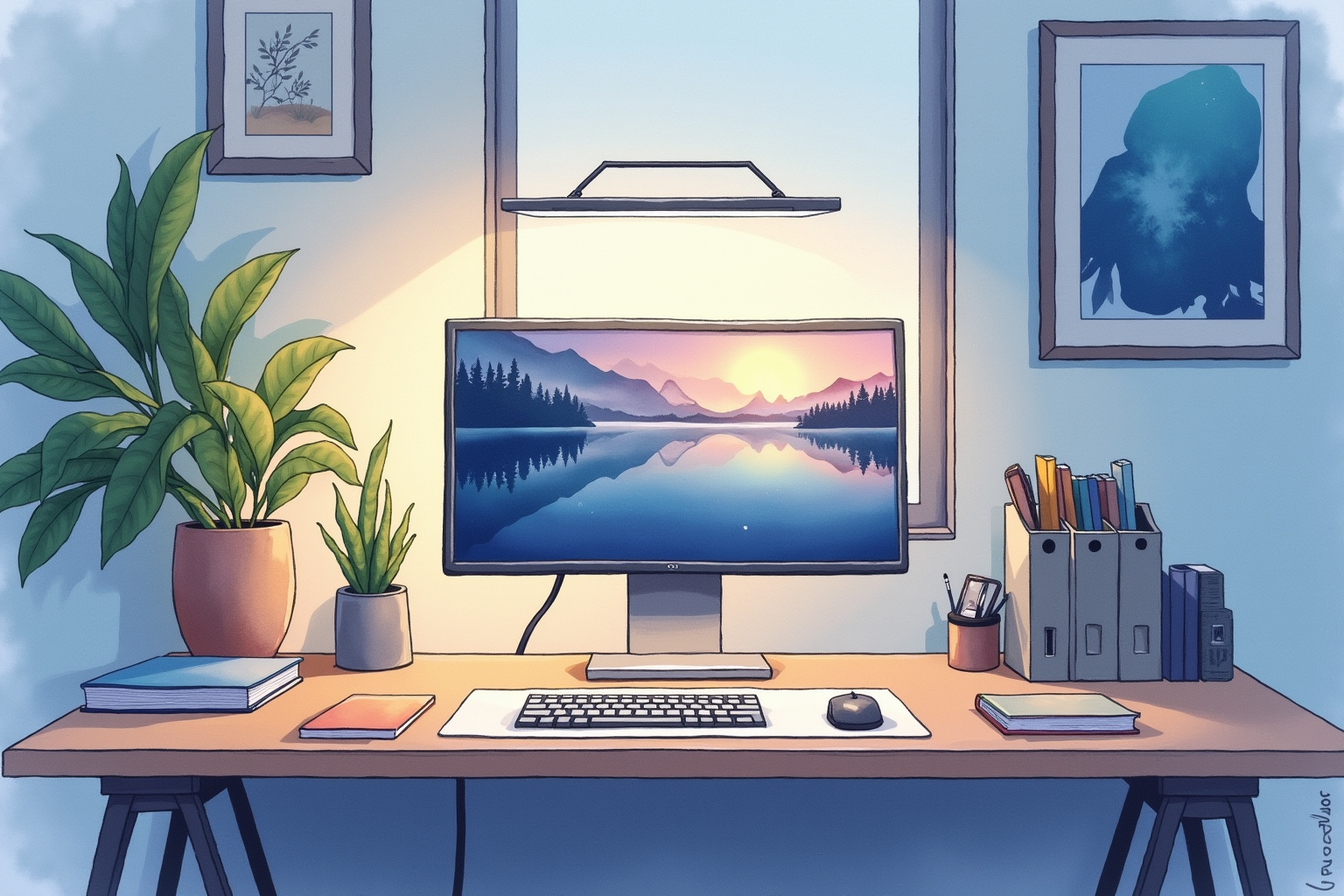
For dual setups:
24-inch monitors: Save desk space, work for smaller offices. 1080p adequate, 1440p preferred.
27-inch monitors: Sweet spot for productivity. 1440p resolution provides crisp text. Industry standard.
32-inch monitors: More screen real estate per monitor. 4K resolution recommended (text gets tiny on 32” 1440p).
Mixed sizes: Match pixel density if possible. 27” 4K + 24” 1080p look mismatched. 27” 1440p + 24” 1080p look similar.
Most users find 27” 1440p the optimal dual setup. Two of them, $400-700 total, deliver excellent productivity for most workflows.
Ergonomic Setup
For dual monitor health:
Primary monitor centered in front of you. Direct eye contact, no neck rotation.
Secondary monitor at angle (15-20 degrees from primary). Visible with eye movement only, occasional neck rotation OK.
Same height: Both monitor tops at eye level.
Same distance: Both monitors 20-30 inches from face.
Avoid: Two monitors symmetric with bezel directly in front of face. This forces constant neck rotation.
For asymmetric workflow (primary used 80%, secondary 20%): primary centered, secondary off to dominant side.
The Portrait Monitor Use Case
Vertical orientation transforms certain workflows:
Code review: 70-100 lines of code visible vs 40-50 in landscape.
Long documents: Whole pages visible without scrolling.
Social media monitoring: Twitter/Slack feed shows more.
Terminal output: More command history visible.
Web layouts: Many websites are vertical-first (mobile-style).
Setup: VESA monitor (most modern monitors support 90-degree rotation) + arm with rotation pivot. Software handles orientation automatically (Windows: Display Settings; macOS: System Preferences > Displays).
About 30% of programmers use this configuration. Once you adapt (1-2 weeks), it’s hard to go back.
Dell UltraSharp U2723QE 27 4K
Price · $500-650 — premium 27 inch 4K with USB-C dock
+ Pros
- · 27 inch 4K resolution with crisp text rendering
- · USB-C with 90W charging eliminates separate dock
- · Excellent color accuracy out of box, sRGB and DCI-P3 modes
− Cons
- · Premium pricing vs basic 27 4K alternatives
- · USB-C requires laptop with Thunderbolt or DP Alt Mode
- · Limited HDR performance vs gaming-focused panels
Connection Options
For laptops driving dual monitors:
Thunderbolt 4 dock + 2 HDMI/DP outputs: Cleanest. One cable to laptop. CalDigit TS4 or similar.
USB-C dock with dual display: Single dock supports both. Verify “dual 4K@60Hz” specifically (not just “dual monitor”).
DisplayLink dock: Software-based. Works on any USB laptop. Slightly higher CPU usage, occasional glitches. Pluggable docks.
Direct laptop ports: Some laptops have HDMI + USB-C/Thunderbolt. Cleanest minimal-equipment setup.
For MacBook M1/M2 (non-Pro): Limited to one external display natively. Need DisplayLink dock to drive two.
For MacBook Pro M1 Pro+ / M2 Pro+: Dual external displays supported natively via Thunderbolt.
Cable Management
Two monitors mean 4-6 cables (2 power + 2 video + USB hub possibly):
Cable trays under desk ($20-50): Mount horizontal cable channel beneath desk. Hides all cables.
Velcro straps ($5): Bundle cables into clean runs.
Cable sleeves: Flexible mesh tubes (5-10 ft for $10) hide multiple cables in one bundle.
Wireless reduce: Use wireless keyboard/mouse to eliminate USB cables.
For clean aesthetic: invest 30-60 minutes initial cable management. The dual monitor benefit is undermined if visible cables clutter the setup.
Software Optimization
Windows: Display Settings to arrange monitors. PowerToys (free Microsoft tool) adds FancyZones for smart window snapping. Win+Shift+Arrow moves windows between monitors.
macOS: System Settings > Displays. Mission Control assigns spaces per monitor. BetterTouchTool or Rectangle (free) for window snapping.
Cross-platform: Magnet (Mac) or PowerToys (Windows). Snap windows to halves/quarters via keyboard shortcuts.
For users serious about dual monitor productivity: invest 1 hour learning window management shortcuts. Daily payoff is significant.
LG 34WP65C Ultrawide Monitor
Price · $400-500 — 34 inch ultrawide with curved display
+ Pros
- · 34 inch 3440x1440 ultrawide replaces dual standard monitor setup
- · Curved panel for immersive single-workspace feel
- · USB-C input with 65W charging for compatible laptops
− Cons
- · Single monitor means no bezel as natural divider
- · 65W charging insufficient for MacBook Pro 14 inch and larger
- · Not all ultrawide content fills the screen properly
Laptop in Clamshell Mode
Many remote workers use laptop with external monitor in clamshell mode (laptop closed, external monitor only).
Pros:
- Better posture (no looking down at laptop screen)
- Single screen focus, no distraction
- Saves desk space
Cons:
- Laptop runs hotter when closed (heat exit blocked)
- Loses laptop’s quality screen as secondary display
For most professional use: clamshell mode with single 27” external works well. For dual screen: open laptop on left, external on right (laptop screen lower than external monitor — accept the height mismatch or use laptop stand to raise it).
Color and Brightness Matching
For polished look:
Calibrate both monitors to similar color profile. Otherwise text colors and image colors look different when dragging between displays.
Match brightness levels between monitors (200-300 cd/m² typical for office).
Use same color temperature (6500K usually).
Color calibration: For pros (designers, photographers), invest in colorimeter ($100-200) like Datacolor SpyderX or X-Rite i1Display. Calibrates both monitors to same standard.
For typical office work: visually match brightness and use OS color profiles. Don’t obsess unless color accuracy is critical to work.
Workflow Tips
After 18 months of dual monitor productivity:
Communications on secondary: Slack, email, Teams on secondary monitor. Primary stays focused on work.
Reference on secondary: Documentation, design specs, source materials.
Avoid splitting work across monitors: Don’t put half of a single task on each monitor (creates head-turning).
Snap to halves: On primary monitor, snap two apps to left/right halves for fine-grained multitasking.
Pinned windows: Some apps (Slack, music player) can pin to specific monitor permanently.
Bottom Line — Pick Your Use Case
For most knowledge workers — Two 27 inch 1440p monitors ($400-700 total) is the dominant pick. Best balance of size, resolution, and cost. Setup transforms productivity within 1-2 weeks.
For programmers and writers — landscape primary + portrait secondary. Vertical orientation maximizes lines of code/text visible. About 30% of programmers swear by this configuration.
For video editors and traders — 34-49 inch ultrawide curved. Single seamless workspace. Cleaner than dual but more expensive.
For laptop-only users — single 27 inch external in clamshell mode. Better posture than laptop screen alone. Adequate for 80% of remote work.
Avoid: mixing radically different monitor sizes (24” + 32”) which creates ergonomic problems, identical monitors symmetric with bezel directly in front of face, monitor stands that can’t reach eye level (combine with arm to fix).