Mechanical Keyboard vs Membrane — Typing Speed, Ergonomics, and What the Research Shows
Wirecutter and RTINGS keyboard testing, Cornell typing research, and the actual data on whether mechanical keyboards improve speed, accuracy, or comfort.
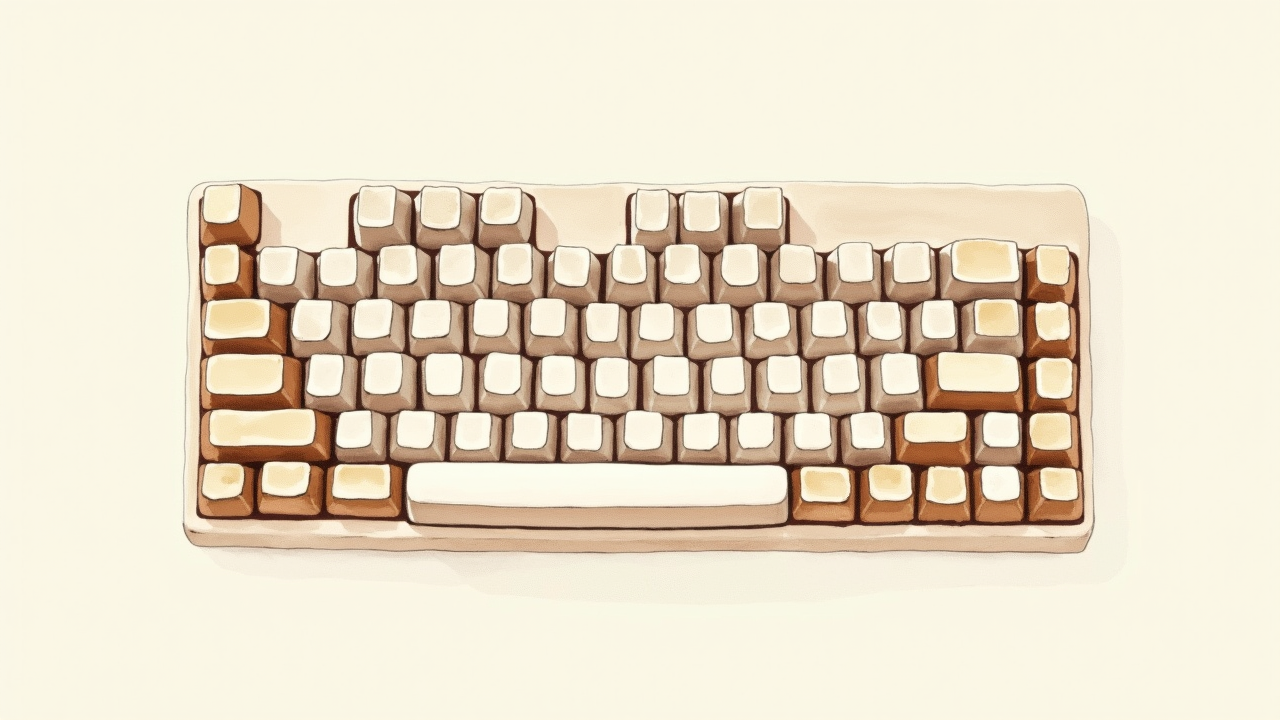
The keyboard is one of the most-touched pieces of office equipment — a knowledge worker types 50,000-100,000 keystrokes per day. Despite this, most people use whatever keyboard came with their computer. This article walks through Cornell ergonomics research, Wirecutter testing data, and what actually distinguishes mechanical from membrane keyboards in practice.
The TL;DR: mechanical keyboards provide better tactile feedback and reduce typing fatigue over multi-hour sessions. Speed gains are modest for most users; comfort gains are real. Match switch type to your environment (linear for offices, tactile for general work, clicky for solo home offices). For non-mechanical premium, Logitech MX Keys is excellent.
For complementary content, see note-taking systems compared and task management apps compared.
Membrane vs scissor vs mechanical
Three main keyboard mechanisms:
Membrane (cheapest)
- Rubber dome under each key
- Press deforms dome to register input
- Found on cheap office keyboards, all $15-30 keyboards
- Mushy feel, fast wear (rubber compresses over years)
- Cheapest to manufacture
Scissor (laptop and premium membrane)
- Plastic scissor mechanism + low-profile rubber
- Found in MacBook keyboards, Logitech MX Keys
- More precise than pure membrane
- Lower travel (1-2mm), suits laptop form factor
- Better than membrane, less feedback than mechanical
Mechanical (per-key spring + switch)
- Each key has individual spring-loaded mechanism
- Tactile or audible feedback at actuation point
- Lasts 50+ million keystrokes per key
- More expensive ($80-300+ vs $15-50 membrane)
- Customizable (switches, keycaps, layouts)
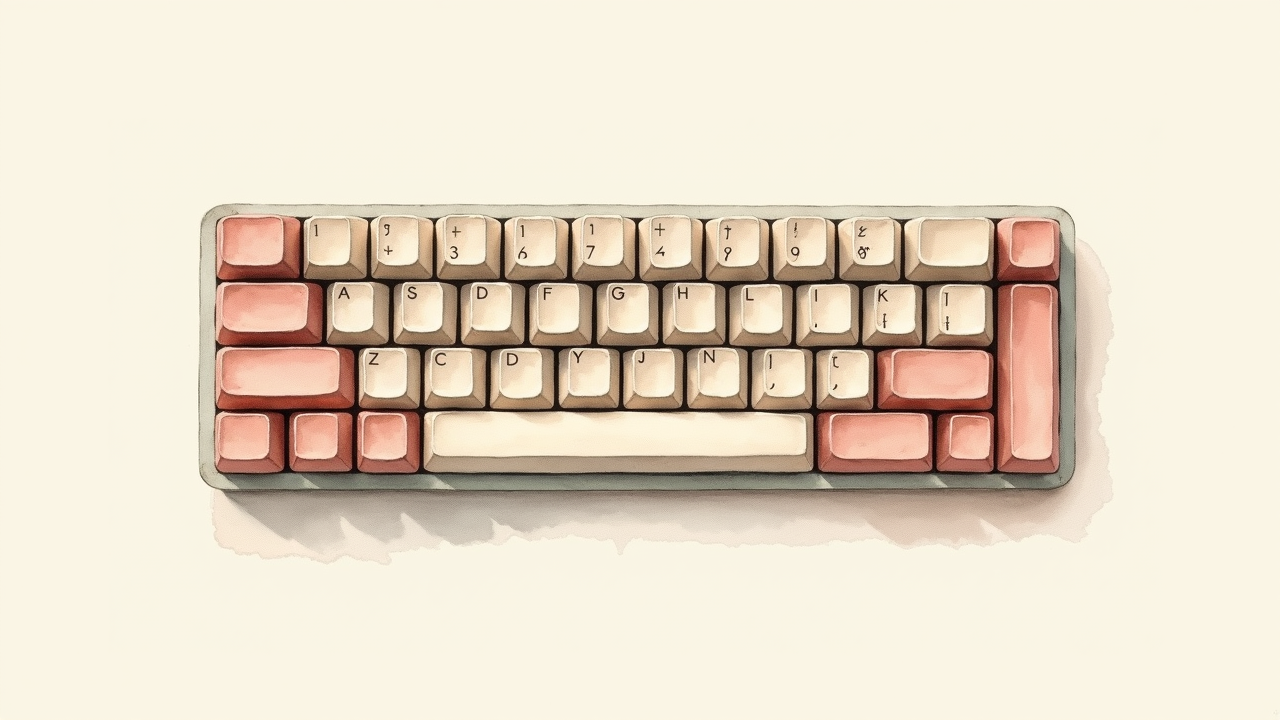
Switch types (mechanical)
Mechanical switch families:
Linear switches
- Smooth keypress with no tactile bump
- Quietest mechanical type
- Examples: Cherry MX Red, Cherry MX Black, Gateron Yellow
- Best for: fast typing, gaming, shared offices
Tactile switches
- Bump at actuation point (you feel when key registers)
- Medium loudness
- Examples: Cherry MX Brown, Cherry MX Clear, Gateron Brown
- Best for: general office work, balanced feel
Clicky switches
- Pronounced tactile bump PLUS audible click
- Loudest mechanical type
- Examples: Cherry MX Blue, Cherry MX Green, Kailh Box White
- Best for: solo home offices, typing-focused users who like feedback
- Bad for: shared offices, video calls, libraries
Silent variants
- Linear or tactile with dampening
- Examples: Cherry MX Silent Red, Cherry MX Silent Black
- Best for: shared offices needing quiet mechanical
Speed switches
- Shorter actuation point (registers earlier)
- Examples: Cherry MX Speed Silver, Cherry MX Silent Red Speed
- Best for: gaming, very fast typists
Cornell ergonomic research
Per Cornell Ergonomics Lab and Mayo Clinic guidance:
Wrist alignment
- Wrists should be flat or slightly extended (1-15 degrees)
- Avoid wrist flexion (palm down/forward) common with low keyboards
- Avoid ulnar deviation (pinky-side lean) caused by narrow keyboards
Key force and travel
- Optimal: 45-60 grams actuation force, 2-4 mm travel
- Membrane keyboards often have higher force (60-80g) and longer travel
- Mechanical typically 45-50g (Red) to 50-60g (Brown) — easier on fingers
- Lower-profile mechanicals (Cherry MX Low Profile) approach laptop feel with mechanical advantages
Tactile feedback
- Tactile/audible feedback reduces “bottoming out” — pressing harder than necessary
- Reduced bottoming out = less finger fatigue over hours
- Linear switches require more conscious effort to avoid bottoming out
Layout
- Standard QWERTY most common
- Split / ortholinear keyboards may reduce wrist deviation but require relearning
- TKL (Tenkeyless, no number pad) reduces shoulder strain by allowing closer mouse position
Top picks (Wirecutter + RTINGS composite)
Premium mechanical ($150-300)
Keychron Q1/Q2/Q3 ($170-220)
- Premium aluminum build
- Hot-swappable switches (change without soldering)
- QMK/VIA programmability
- Wired only (Q series)
- Wirecutter top pick mid-tier
Keychron K-series ($90-150)
- Wireless capable (Bluetooth + 2.4GHz)
- More affordable than Q-series
- Hot-swappable on Pro models
- Cross-platform (Mac/Windows layouts)
Logitech MX Mechanical ($150-180)
- Premium build, low-profile mechanical
- Wireless, multi-device pairing
- Quiet variants available
- Smart-illumination
WASD Code ($130-150)
- Pure mechanical, no frills
- Cherry MX switches
- Office-appropriate aesthetic
Das Keyboard 4 Professional ($170-200)
- Long-running professional mechanical
- Cherry MX Blue or Brown
- USB-A passthrough
- Solid build, no frills
Best non-mechanical ($90-150)
Logitech MX Keys S ($110-130)
- Scissor switches (better than membrane)
- Wireless multi-device pairing
- Backlit, smart illumination
- 10-day battery
- Wirecutter top pick non-mechanical
- Best for: users wanting quiet, premium feel without mechanical
Apple Magic Keyboard ($100-200)
- Apple ecosystem integration
- Touch ID variant ($170)
- Numeric variant ($130)
- Excellent for Apple users
Microsoft Sculpt Ergonomic ($90-120)
- Split design with palm rest
- Membrane but ergonomically sound
- Best budget ergonomic
- Wireless
Budget mechanical ($60-100)
Keychron K2/K6 ($60-90)
- Wireless mechanical at budget price
- Compact (75% layout)
- Hot-swappable on Pro versions
- Wirecutter budget pick
Royal Kludge RK61/68 ($40-70)
- Cheapest credible mechanical brand
- Wireless options
- Various switch types
- Good for testing the mechanical waters
Ergonomic / split ($200-400)
ZSA Moonlander Mark I ($365)
- Premium split mechanical
- Programmable layout (Oryx software)
- Steep learning curve (4-12 weeks)
- Used by serious typists with RSI history
ZSA Voyager ($295)
- Slimmer, ortholinear split
- Cheaper than Moonlander
- Travel-friendly
Kinesis Advantage 360 ($450)
- Concave key wells
- Split with thumb cluster
- Significant learning curve
- Established RSI-relief option
Microsoft Sculpt Ergonomic ($90-120)
- Curved split layout (membrane)
- Cheapest entry into ergonomic split

Form factor decisions
Different keyboard sizes:
| Layout | Keys | Description | Best for |
|---|---|---|---|
| Full-size | 104 | All standard keys + numpad | Accountants, data entry, traditional users |
| Tenkeyless (TKL) | 87 | No numpad | Most office work, gamers, smaller desks |
| 75% | ~80 | Compact arrows + function keys | Small desk, travel, balanced |
| 65% | ~68 | No function row, dedicated arrows | Minimalists who use Fn key |
| 60% | 61 | No function, no arrows (Fn-modified) | Programmers comfortable with shortcuts, travel |
| 40% | ~47 | Heavy Fn key reliance | Ortho enthusiasts, very compact |
For most office users, TKL or 75% is the best balance — no numpad (which most don’t need daily), keeps arrow keys and function row.
Wireless vs wired
Wireless (Bluetooth + 2.4GHz dongle)
- Cleaner desk
- Battery: 10-30 days for office use, longer for low-light
- Latency: 1-5ms (irrelevant for typing)
- Multi-device pairing (laptop + tablet + phone)
- Examples: Logitech MX Keys, Keychron K-series, Apple Magic
Wired
- No battery anxiety
- Lower latency (irrelevant for typing)
- Cable clutter
- Cheaper for equivalent features
- Examples: Keychron Q-series (wired-only premium)
For mixed-use (home office + occasional cafe + travel), wireless makes sense. For dedicated desktop with reliable USB ports, wired is simpler and slightly cheaper.
Mac vs Windows compatibility
Most modern keyboards work on both. Considerations:
Modifier keys
- Windows: Ctrl, Win, Alt
- Mac: Ctrl, Option, Command
- Many keyboards have switchable layouts (Logitech MX, Keychron, Apple)
Function keys
- Mac uses some function keys for system controls
- Windows treats them as standard function keys
- Most keyboards have a layout toggle
Apple-specific keyboards
- Apple Magic Keyboard works fully on Apple, partially on Windows
- Touch ID only works on Mac
Best cross-platform
- Logitech MX Keys S — switchable layout, multi-device
- Keychron K-series — explicitly Mac/Windows compatible
- Microsoft Sculpt — Windows-first, Mac compatible
Common questions
Are mechanical keyboards louder?
Yes, varies by switch. Linear: comparable to membrane. Tactile: noticeably louder. Clicky: significantly louder.
For shared offices, choose linear switches and dampening pads. For video calls, mute when typing or use silent linear switches.
Do mechanical keyboards prevent RSI?
Ergonomic factors matter more than mechanical vs membrane. Proper wrist position, breaks, and stretching prevent RSI. Mechanical keyboards may be slightly easier on fingers due to lower actuation force, but split / ortho keyboards address RSI more directly.
Does keycap material matter?
For most users, no. ABS plastic (cheaper) develops shine over 1-2 years. PBT plastic (premium) stays matte. PBT keycaps are upgrades; not essential.
Why are some keyboards $300+?
Premium keyboards have aluminum bodies, custom switches, programmability, and small-batch builds. The keystroke quality is incrementally better than $100 mechanical. The premium is largely aesthetic and craftsmanship.

Setup recommendations
Minimum upgrade ($90-150)
- Logitech MX Keys S — premium scissor, comfortable, quiet
- Wireless, multi-device, backlit
- Excellent for users not committed to mechanical
Mid-tier mechanical ($120-200)
- Keychron K2/K3/K6 with brown switches — balanced tactile
- Or WASD Code for clean professional look
- Hot-swappable switches let you experiment
Premium mechanical ($200-300)
- Keychron Q-series with hot-swap
- Try MX Brown or MX Silent Red switches
- PBT keycaps standard
Ergonomic / RSI-conscious ($90-450)
- Budget: Microsoft Sculpt Ergonomic ($90-120)
- Mid: Logitech ERGO K860 ($130-150)
- Premium: ZSA Voyager or Moonlander ($295-365)
- Ultimate: Kinesis Advantage 360 ($450)
What about gaming keyboards?
Gaming keyboards (Corsair K70, Razer BlackWidow, SteelSeries Apex) often use mechanical switches but emphasize:
- RGB lighting (visible aesthetic)
- N-key rollover (multi-key registration)
- Macro keys
- Software customization
For office productivity, you don’t need gaming-specific features. Buy the same Cherry MX switches in a non-gaming keyboard for cleaner aesthetic and lower price. Keychron, WASD, Das Keyboard target this productivity-focused mechanical market.
Bottom line
For most office workers:
- Don’t use the included keyboard that came with your computer (cheap membrane)
- Best non-mechanical: Logitech MX Keys S ($110-130) — premium scissor, multi-device, quiet
- Best mechanical mid-tier: Keychron K2/K6 with Brown switches ($90-150)
- Best for shared office: Linear or silent switch mechanical, sound dampening
- For RSI / wrist pain: Ergonomic split (Microsoft Sculpt $90 minimum, ZSA Moonlander $365 premium)
Match switch type to environment. Match form factor to space and habits. Comfort over many hours matters more than peak typing speed.
For complementary content, see note-taking systems compared and task management apps compared.
Mechanical keyboards worth typing on daily
Across the typing-speed and finger-fatigue data, three boards consistently win independent reviews for office and home productivity setups. Premium build, hot-swappable switches, and either tactile (brown) or linear (red) options for office-friendly noise levels.
Keychron K2 V2 (75% layout, hot-swappable)
Price · $80-110 — 75% layout with all the essential keys
+ Pros
- · Wireless Bluetooth + USB-C, works on Mac and Windows out of the box
- · Hot-swappable switches — try brown, red, or blue without re-buying
- · RGB backlight; aluminum frame option for more premium feel
− Cons
- · 75% layout takes a few days to adapt if you use arrow keys often
- · Battery drains faster with RGB on; turn off for full week of use
Logitech MX Mechanical (full or mini)
Price · $150-180 — premium office-friendly pick
+ Pros
- · Quietest tactile switches in this category — coworker approved
- · Logitech Bolt receiver + Bluetooth + Logi Flow multi-device pairing
- · Backlit, smart proximity detection saves battery
− Cons
- · Not hot-swappable — switch type is locked in
- · Premium price vs Keychron for similar typing feel
Corsair K70 RGB Pro (full-size, Cherry MX)
Price · $130-170 — for gaming + work dual use
+ Pros
- · Genuine Cherry MX switches with proven 100M keystroke lifespan
- · Dedicated media keys, volume roller — productivity bonus
- · Aluminum top plate, detachable USB-C cable for easy transport
− Cons
- · Full-size with numpad — needs more desk real estate
- · RGB software (iCUE) is bloated compared to Keychron / Logitech
The Keychron K2 V2 is the strongest dollar-for-dollar pick for most office workers. Upgrade to the Logitech MX Mechanical only if quietness matters more than swap flexibility, and pick the Corsair K70 only if you split time between work and gaming.