A USB-C or Thunderbolt dock can control charging, monitors, Ethernet, audio, storage, and keyboard access. Firmware updates can fix security and stability problems, but a rushed update can also strand a workday. This guide was checked on June 14, 2026 against CISA, NIST, USB-IF, Thunderbolt, and vendor support resources. Always use your exact dock vendor and model page before applying firmware.
Decision table
| Update risk | Safer action | Rollback/evidence |
|---|---|---|
| Wrong model | Match vendor, model, hardware revision, OS | Screenshot or saved support page URL |
| Power loss | Use stable AC power and avoid hub chains | Battery and power state note |
| Display outage | Know direct laptop display fallback | Cable map and spare adapter |
| Enterprise device | Check IT policy before firmware tools | Ticket or approval note |
| Post-update failure | Test charging, displays, Ethernet, audio, USB | Dated test checklist |
Match the exact dock before downloading anything
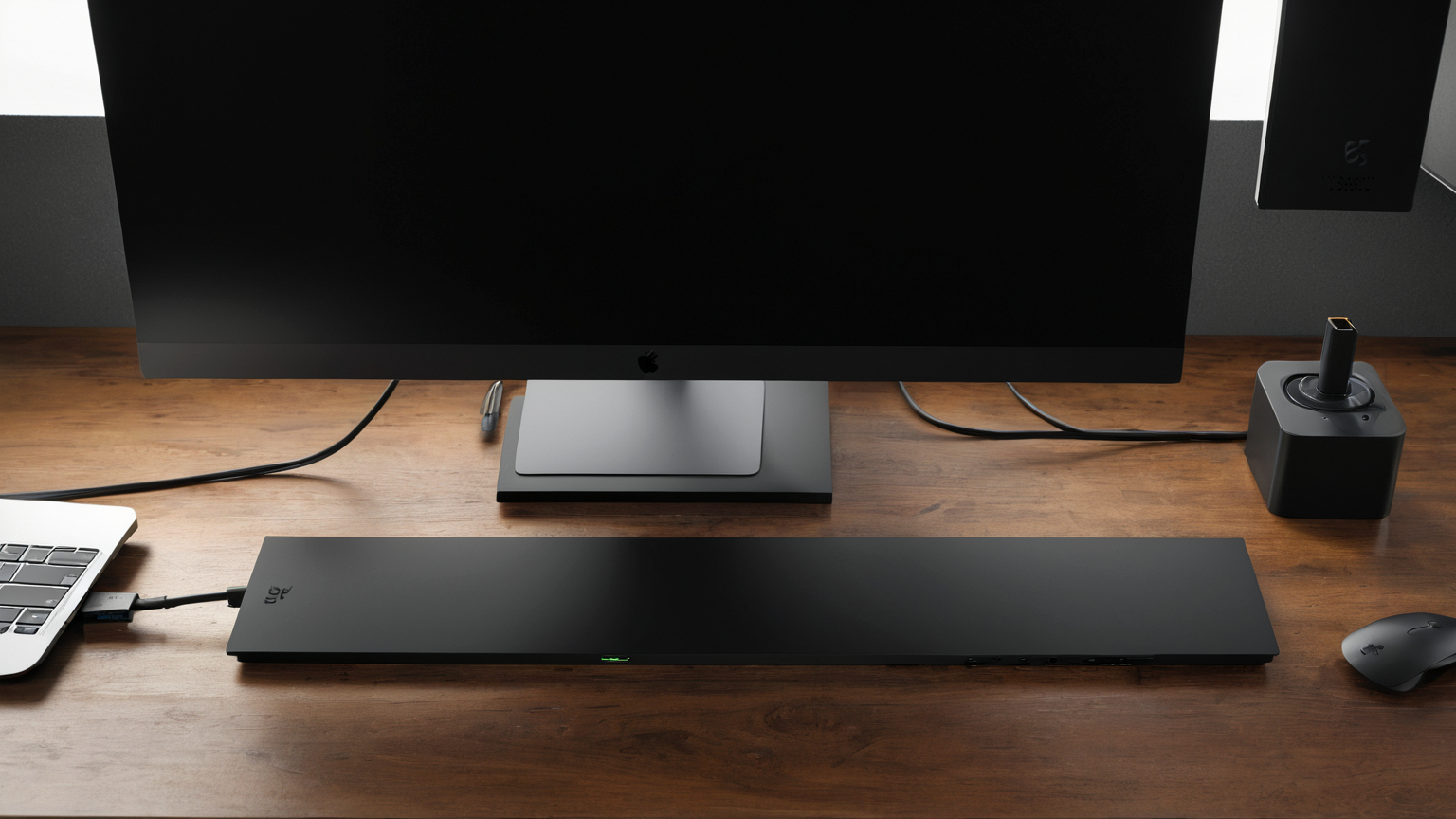
Dock firmware is model-specific. Confirm vendor, model number, hardware revision, operating system, and whether the updater is for the dock or the laptop. Download only from official vendor support pages. Avoid third-party driver bundles, forum mirrors, and “universal updater” advertisements.
Build a fallback path for the workday
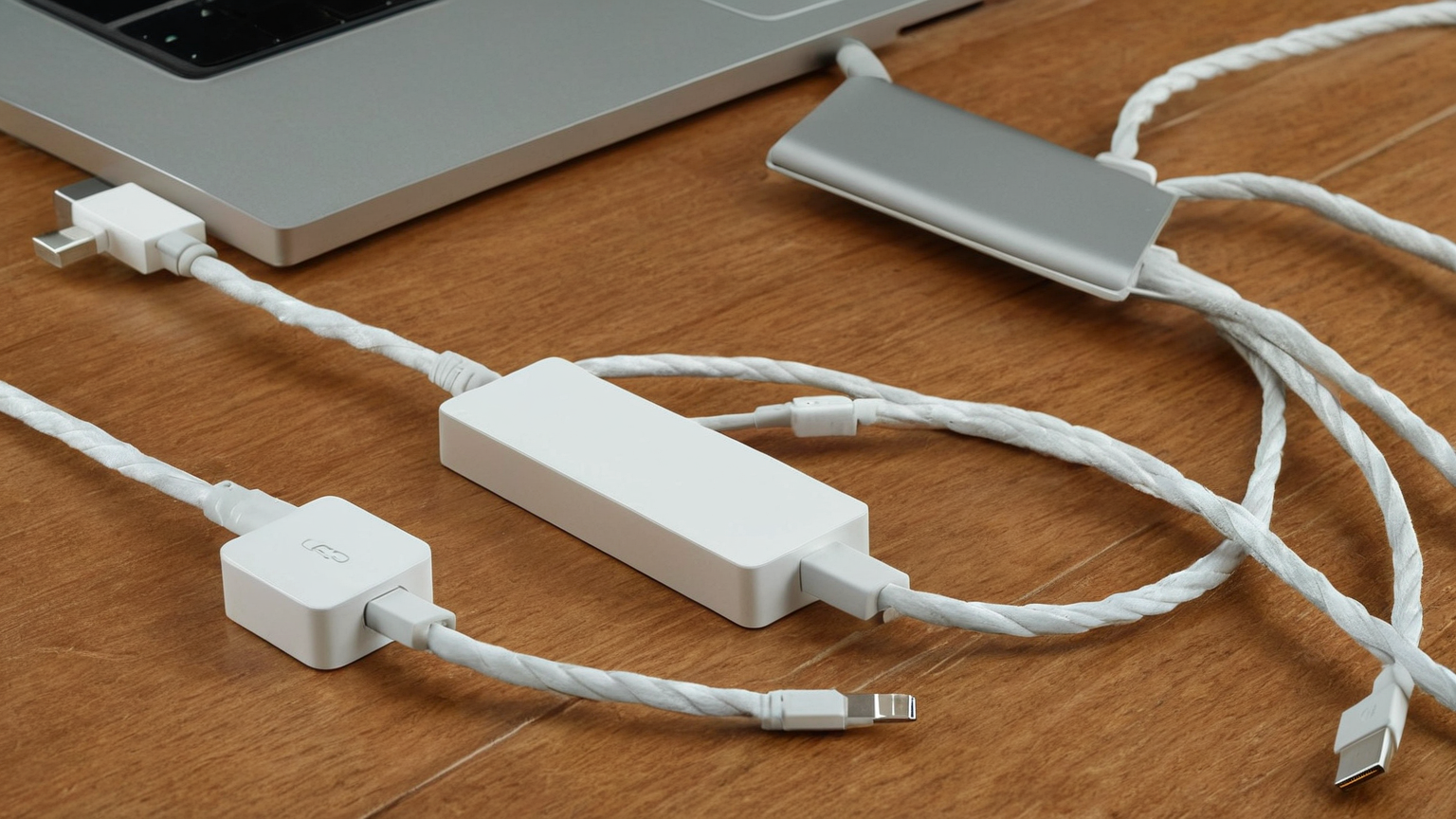
Before updating, connect the laptop power adapter directly, know how to use the built-in display, and keep a spare HDMI/USB-C adapter if the dock fails. For remote workers, do the update outside calls and deadlines. For office fleets, pilot one dock before updating every desk.
Protect security without creating downtime
CISA and NIST guidance supports timely updates, but operational impact matters. Read release notes when available, especially for display, Ethernet, charging, sleep/wake, and USB device changes. If the dock is managed by IT, open a ticket instead of running a personal updater with admin rights.
Test every function after the update
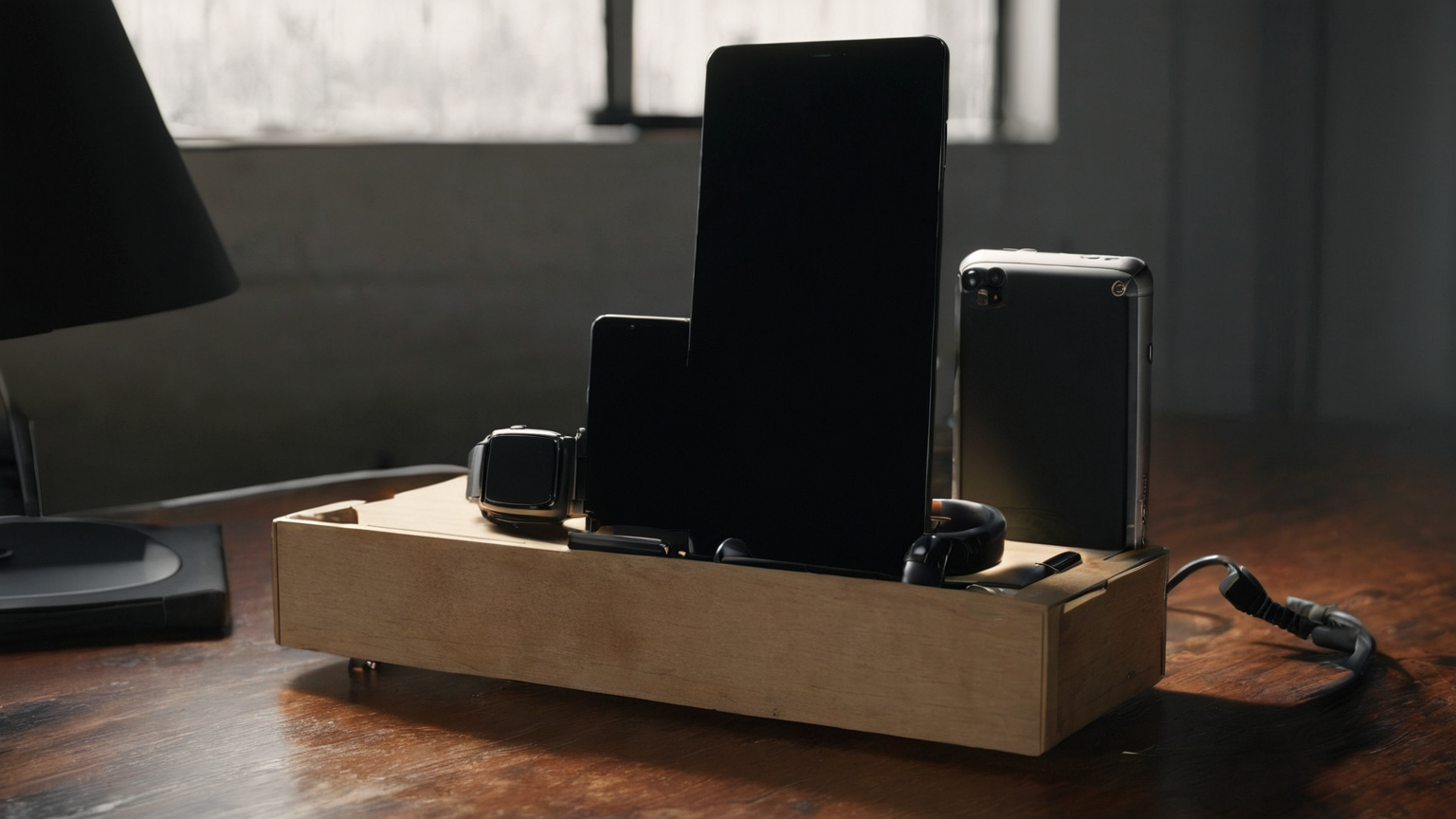
A successful updater message is not enough. Test charging wattage, external monitors, Ethernet, audio, webcam, keyboard, mouse, storage, sleep/wake, and hot-plug behavior. Record the firmware version and any ports that behave differently.
Keep a clean rollback record
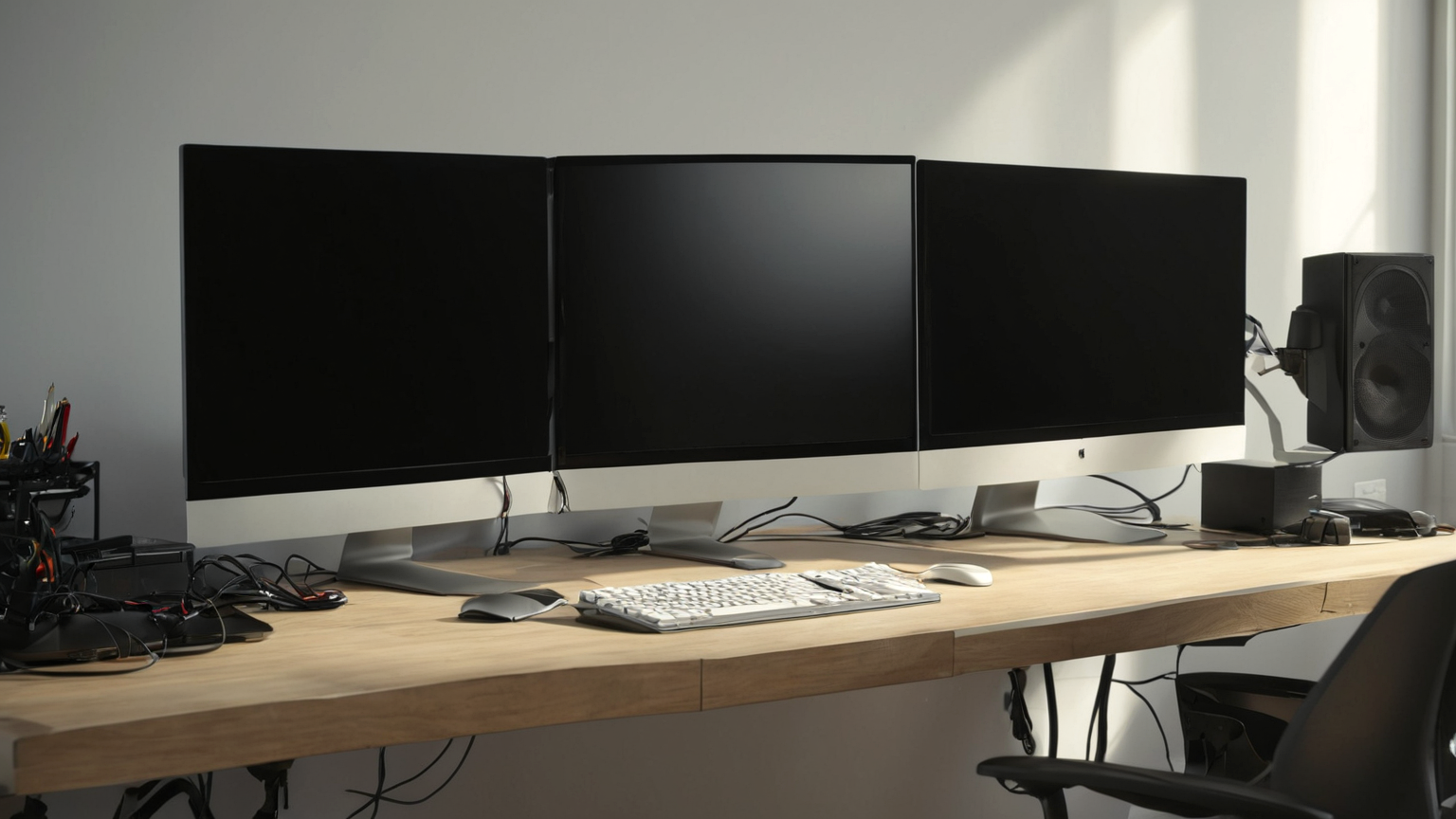
Some docks cannot roll back easily. Save the old version, new version, support URL, updater filename, date, operating system, and symptoms. If support is needed, this evidence is more useful than a vague “the dock stopped working” report.
Practical checklist
- Use official sources and exact account, device, route, or medication details instead of generic advice.
- Record the decision owner, review date, evidence location, and escalation path.
- Keep sensitive records private: credentials, full account numbers, serials, prescriptions, travel documents, and identity details do not belong in shared screenshots.
- Test the plan before a deadline, trip, billing cycle, support call, or irreversible change.
- Revisit the checklist after provider, policy, device, health, travel, household, or institution changes.
FAQ
Is this current for 2026?
Yes. The article was checked against the listed sources on June 14, 2026, but official pages, institution rules, vendor tools, and travel rules can change.
What should I do first?
Build the decision table first. It turns a vague risk into owners, timing, evidence, and safer next steps.
When should I get expert help?
Ask qualified financial, legal, security, IT, medical, travel, or official support when a mistake could affect money, health, identity, compliance, or access.